• Skip to primary navigation
  • Skip to main content
  • Skip to primary sidebar
  • Skip to footer

AAGConnect

Go to the Safety Page
  • Home
  • News
  • Resources
    • Safety
    • Documents
    • Compliance
    • Quarterly Conversations
    • Onboarding
    • Strengths Finder 2.0
    • Submit IT Request
    • AAG My Ideas & Solutions Board
    • Health Plan Description
  • Calendar
  • Employee Directory
You are here: Home / Archives for Elead Training

Elead Training

March 6, 2014 by Chad Sabatka Leave a Comment

Elead Training – Marking Customer Lost / Inactive

Sales Advisors

To mark a customer inactive or lost within Elead follow these two steps below.

DO NOT DO ANY OF THE FOLLOWING:

  • Assign a specific task to a manager without putting the entire Opportunity in Manager Review (see below). You can assign the Manager Review call to a manager (etc) if you also put Opportunity in Manager Review.
  • Leave Opportunities open – especially Internet leads which have automatic emails/follow ups. We need to mark customers lost / inactive ASAP.
  • Assign specific tasks of a lost / inactive customer to anyone except for your in store managers. Please discontinue assigning lost / inactive customers to Chad.
  1. Open the Customer’s Record and under the Active Opportunity change the Sales Status to “Manager Review”.
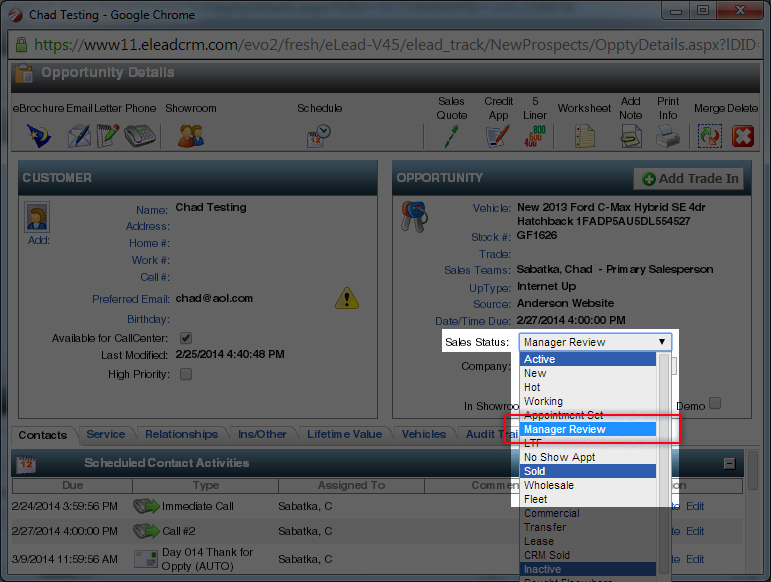
    Manager-Review
  2. Click “Add Note” in the top of the Customer’s Record and enter the reason why this customer is lost or inactive and click save.
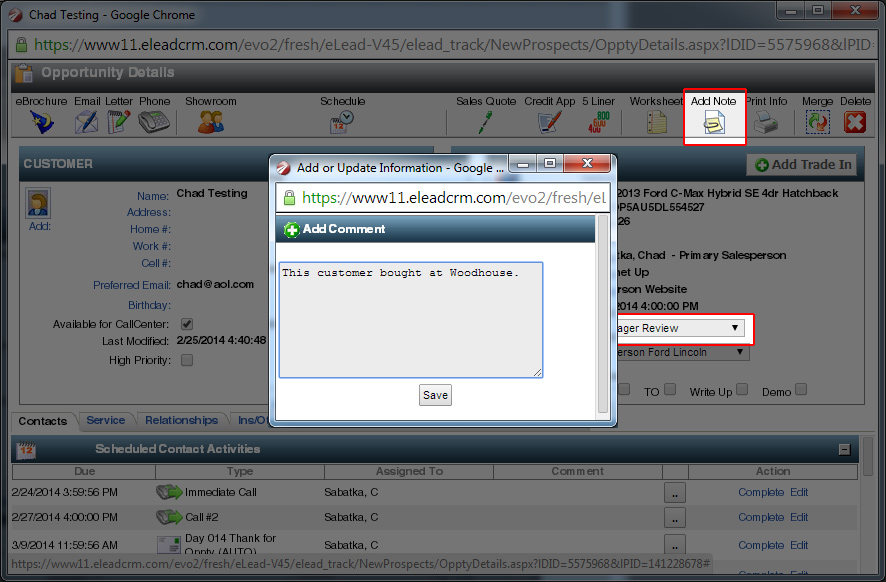
    Manager-Review-2

Sales Managers

To mark a customer inactive or lost within Elead follow these steps below. These steps should be performed daily.

  1. Click the ‘+’ icon next to Active under the Prospects section.
  2. Click the Manager Review folder.
  3. Select the name to move to Inactive / Lost.
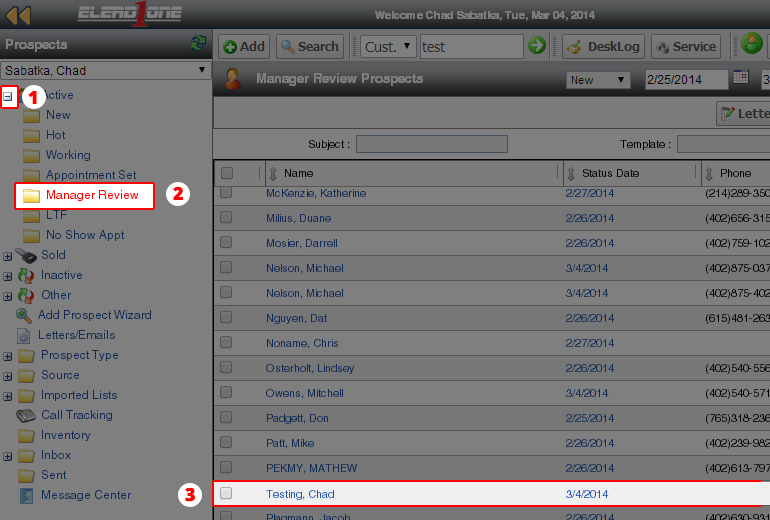
    ManagerReview-3
  4. Within the Customer Record, under the Sales Status select the reason why the customer was lost / inactive.
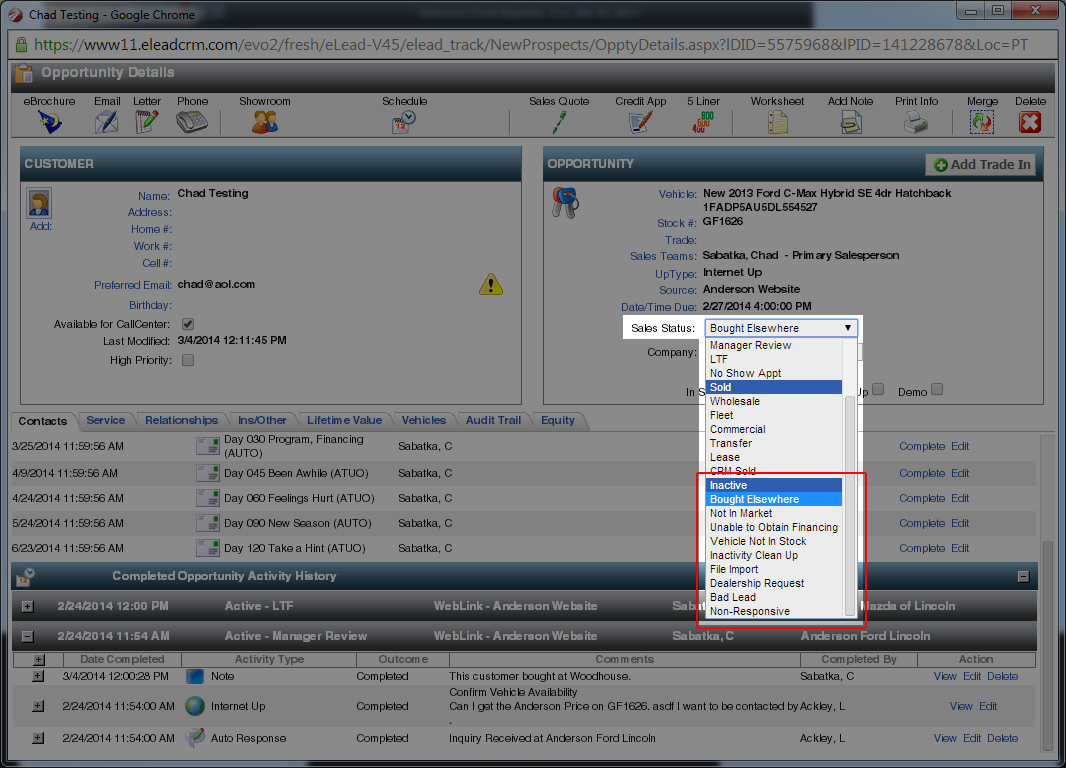
    ManagerReview-4
  5. Enter appropriate notes / comments, then click save.
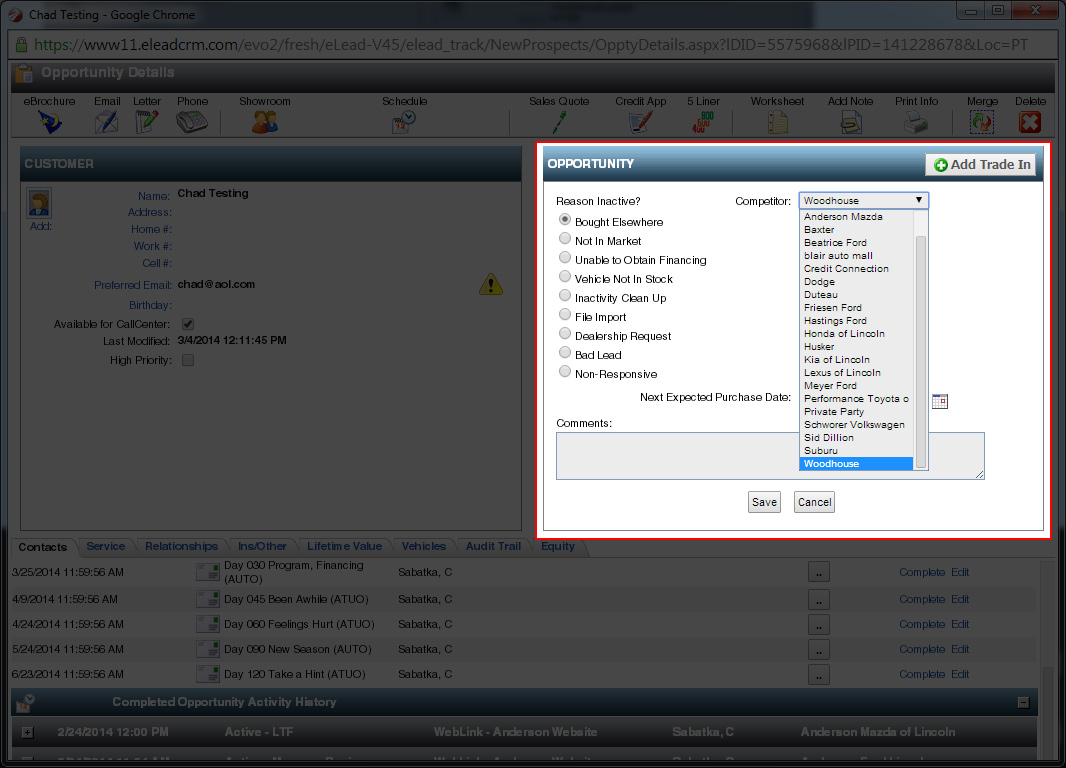
    Manager-Review-5

Filed Under: Elead Training

March 6, 2014 by Chad Sabatka Leave a Comment

Elead Training – Confirm CRM / DMS Solds

Sales Managers – Confirm CRM

To confirm CRM / DMS Solds, follow the instructions below.

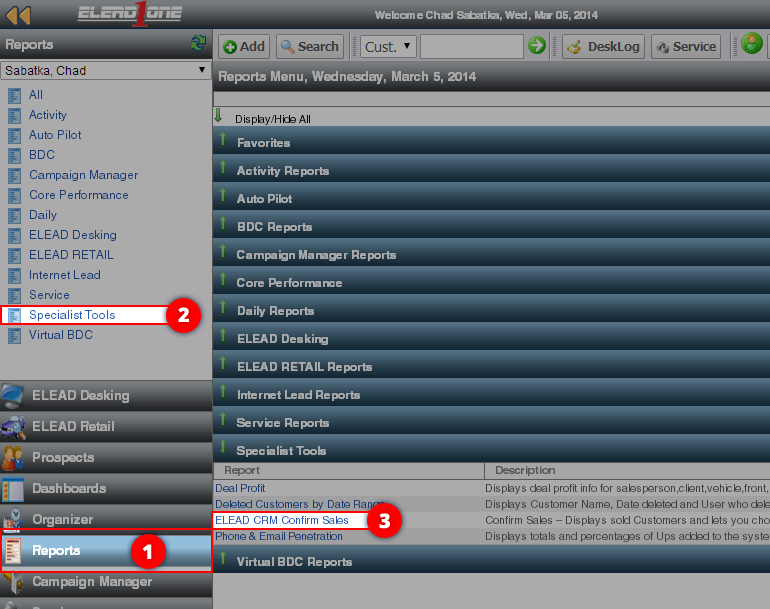
  1. Click on “Reports”
  2. Click on “Specialist Tools”
  3. Click on “ELEAD CRM Confirm Sales”
    Confirm-1
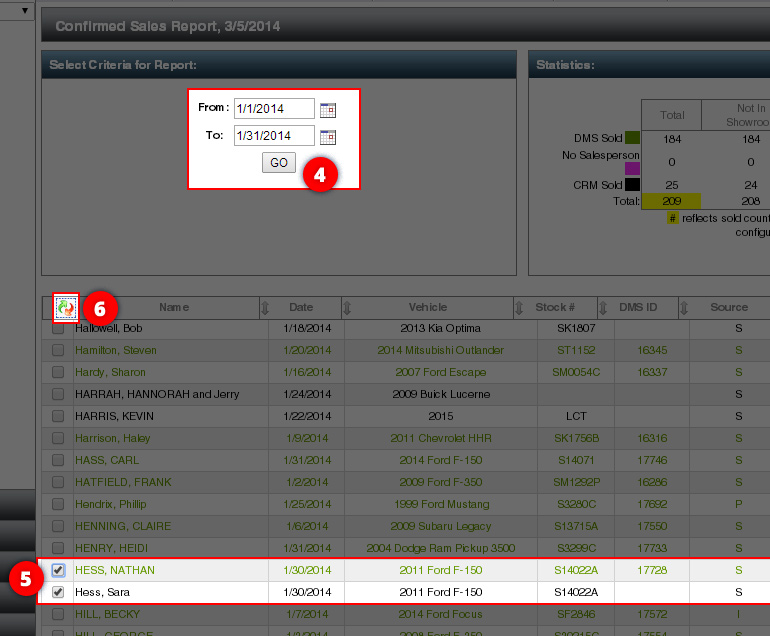
  4. Select the Date Range in which you want to merge record.
  5. Find the records you want to merge/confirm into a single record. The Black records are DMS/Confirmed records and Green and CRM/Unconfirmed. All Green records need to be either Unwound or Merged into a Black DMS record. If you want to merge the records, click the checkbox next to the name.
  6. Click the merge records icon.
    Confirm-2
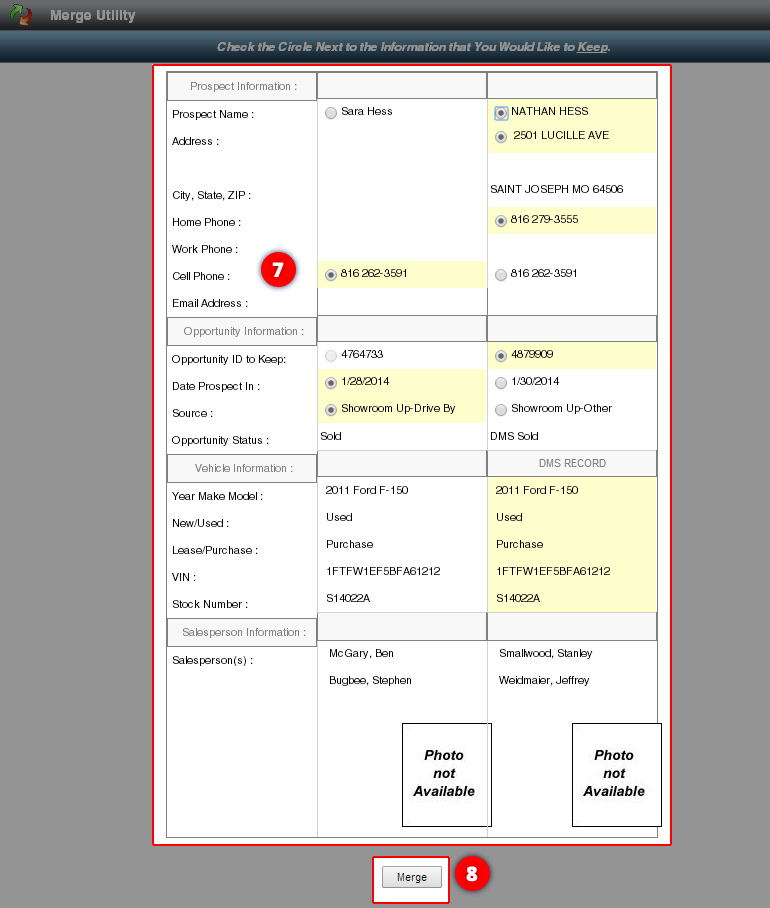
  7. Select the radio button next Prospect Information and Opportunity Information to want to keep. Note: You’ll want to keep the DMS record for Prospect (all caps) and Opportunity Record with a Sales Status of “SOLD” – not DMS Sold – this will ensure the tracking is correct.
  8. Click the “Merge” button.
    Merge-3

Filed Under: Elead Training

Primary Sidebar

  • Home
  • News
  • Resources
    • Safety
    • Documents
    • Compliance
    • Quarterly Conversations
    • Onboarding
    • Strengths Finder 2.0
    • Submit IT Request
    • AAG My Ideas & Solutions Board
    • Health Plan Description
  • Calendar
  • Employee Directory

Footer

Tools & Links

  • AAG Core Values
  • AAG Incident Report
  • AAG My Ideas & Solutions Board
  • Business Card Order Form
  • Continuum Newsletter
  • Employee Exit Interview
  • Phone Functions
  • Post-Accident/Injury Procedure
  • PR TEAM – New Team Member Accounts
  • PR TEAM – New Team Member Form
  • PR TEAM – Role Change Form
  • PR TEAM – Term Notification Form
  • Submit IT Request
  • Traction Tools

Copyright © 2026 · Executive Pro on Genesis Framework · WordPress · Log in