• Skip to primary navigation
  • Skip to main content
  • Skip to primary sidebar
  • Skip to footer

AAGConnect

Go to the Safety Page
  • Home
  • News
  • Resources
    • Safety
    • Documents
    • Compliance
    • Quarterly Conversations
    • Onboarding
    • Strengths Finder 2.0
    • Submit IT Request
    • AAG My Ideas & Solutions Board
    • Health Plan Description
  • Calendar
  • Employee Directory
You are here: Home / Archives for Chad Sabatka

Chad Sabatka

April 20, 2017 by Chad Sabatka 1 Comment

Congratulations Ernie Krenk on your retirement!

On behalf of everyone at Anderson Auto Group, we’d like to congratulate Ernie Krenk on his retirement. Ernie had twenty years of service at AAG, and we wish him well as he begins the next chapter!

Filed Under: Announcements

March 6, 2014 by Chad Sabatka Leave a Comment

Elead Training – Marking Customer Lost / Inactive

Sales Advisors

To mark a customer inactive or lost within Elead follow these two steps below.

DO NOT DO ANY OF THE FOLLOWING:
  • Assign a specific task to a manager without putting the entire Opportunity in Manager Review (see below). You can assign the Manager Review call to a manager (etc) if you also put Opportunity in Manager Review.
  • Leave Opportunities open – especially Internet leads which have automatic emails/follow ups. We need to mark customers lost / inactive ASAP.
  • Assign specific tasks of a lost / inactive customer to anyone except for your in store managers. Please discontinue assigning lost / inactive customers to Chad.
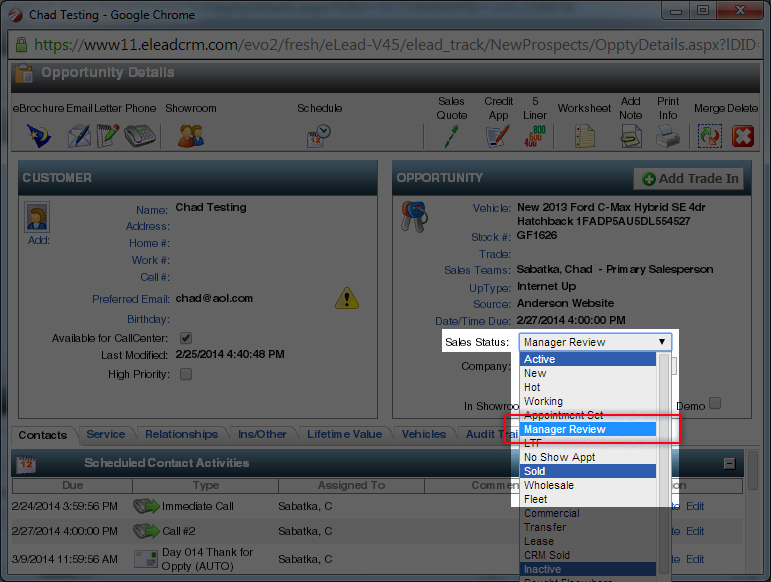
  1. Open the Customer’s Record and under the Active Opportunity change the Sales Status to “Manager Review”.
    Manager-Review
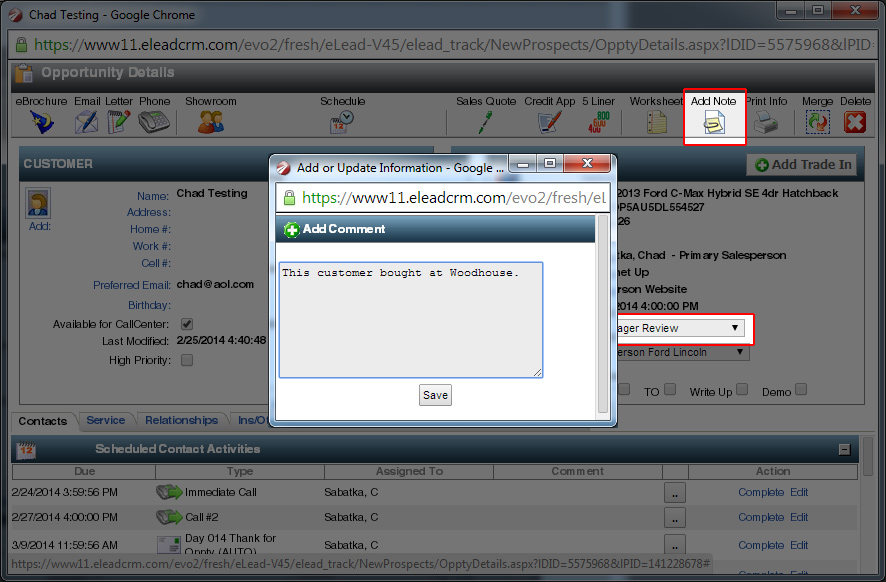
  2. Click “Add Note” in the top of the Customer’s Record and enter the reason why this customer is lost or inactive and click save.
    Manager-Review-2

Sales Managers

To mark a customer inactive or lost within Elead follow these steps below. These steps should be performed daily.
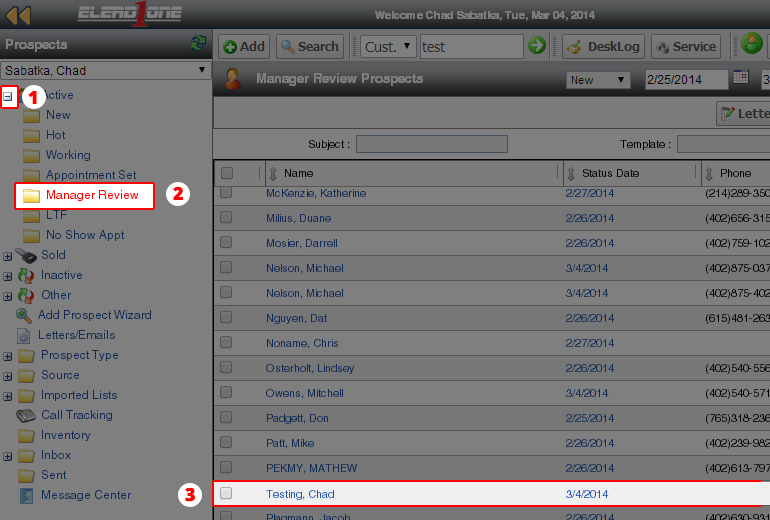
  1. Click the ‘+’ icon next to Active under the Prospects section.
  2. Click the Manager Review folder.
  3. Select the name to move to Inactive / Lost.
    ManagerReview-3
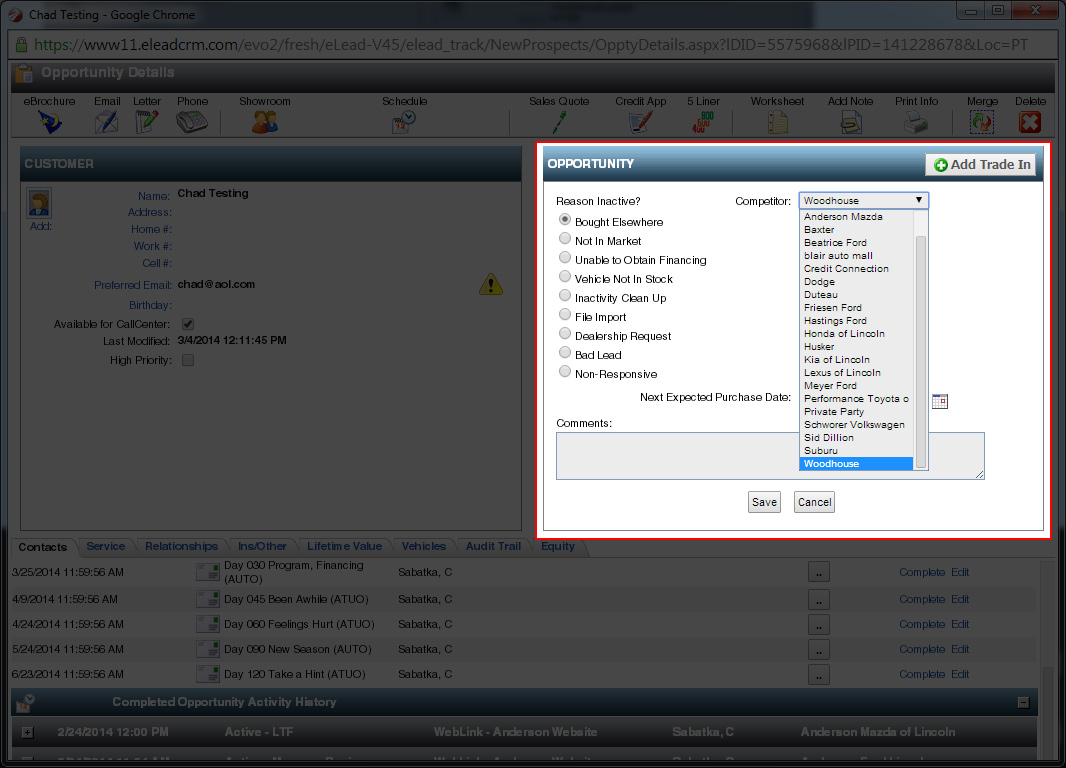
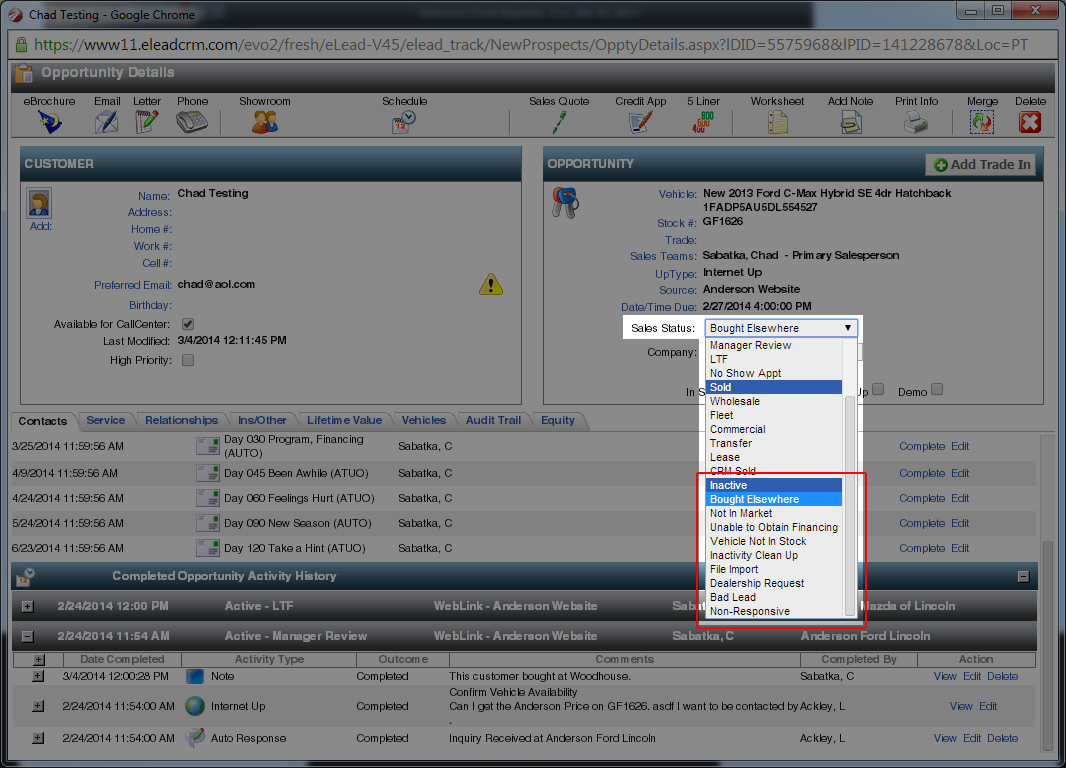
  4. Within the Customer Record, under the Sales Status select the reason why the customer was lost / inactive.
    ManagerReview-4
  5. Enter appropriate notes / comments, then click save.
    Manager-Review-5

Filed Under: Elead Training

March 6, 2014 by Chad Sabatka Leave a Comment

Elead Training – Confirm CRM / DMS Solds

Sales Managers – Confirm CRM

To confirm CRM / DMS Solds, follow the instructions below.
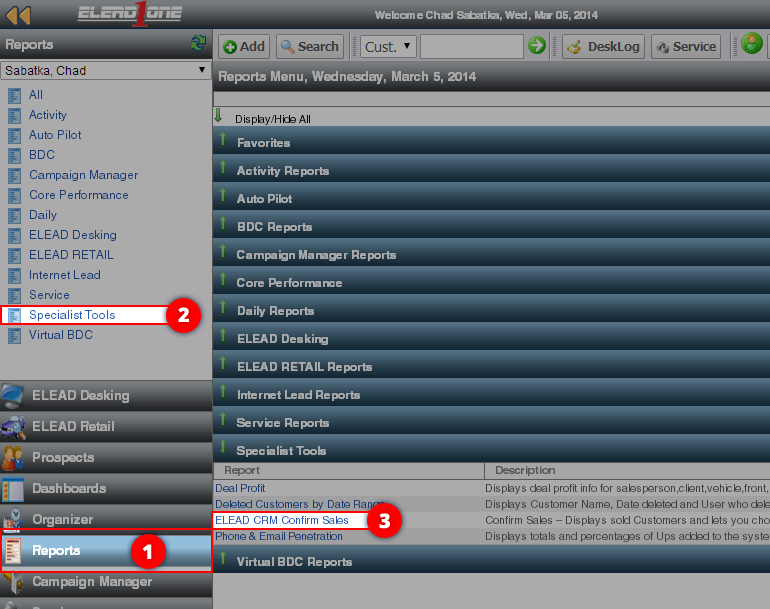
  1. Click on “Reports”
  2. Click on “Specialist Tools”
  3. Click on “ELEAD CRM Confirm Sales”
    Confirm-1
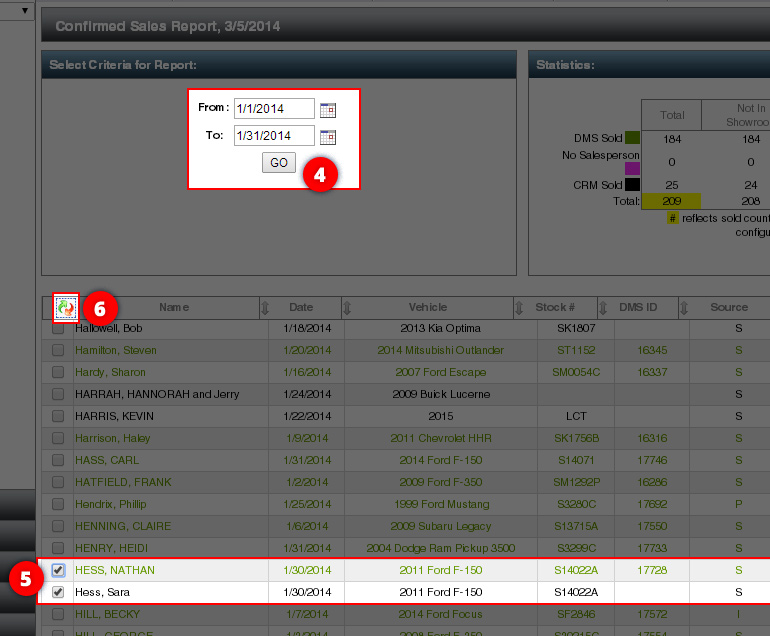
  4. Select the Date Range in which you want to merge record.
  5. Find the records you want to merge/confirm into a single record. The Black records are DMS/Confirmed records and Green and CRM/Unconfirmed. All Green records need to be either Unwound or Merged into a Black DMS record. If you want to merge the records, click the checkbox next to the name.
  6. Click the merge records icon.
    Confirm-2
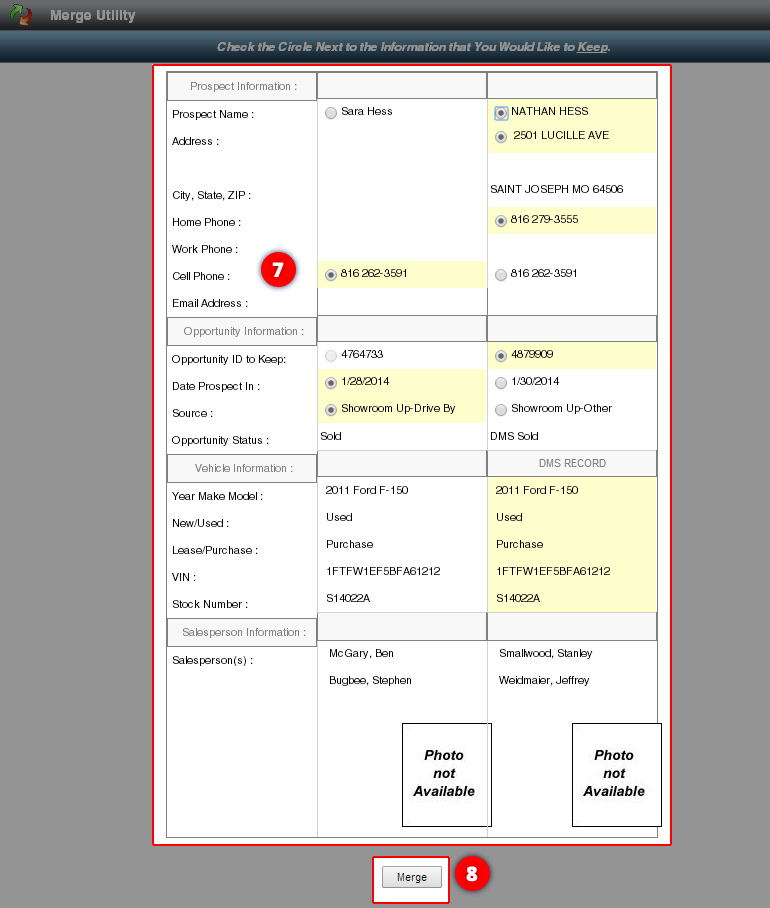
  7. Select the radio button next Prospect Information and Opportunity Information to want to keep. Note: You’ll want to keep the DMS record for Prospect (all caps) and Opportunity Record with a Sales Status of “SOLD” – not DMS Sold – this will ensure the tracking is correct.
  8. Click the “Merge” button.
    Merge-3

Filed Under: Elead Training

Primary Sidebar

  • Home
  • News
  • Resources
    • Safety
    • Documents
    • Compliance
    • Quarterly Conversations
    • Onboarding
    • Strengths Finder 2.0
    • Submit IT Request
    • AAG My Ideas & Solutions Board
    • Health Plan Description
  • Calendar
  • Employee Directory

Footer

Tools & Links

  • AAG Core Values
  • AAG Incident Report
  • AAG My Ideas & Solutions Board
  • Business Card Order Form
  • Continuum Newsletter
  • Employee Exit Interview
  • Phone Functions
  • Post-Accident/Injury Procedure
  • PR TEAM – New Team Member Accounts
  • PR TEAM – New Team Member Form
  • PR TEAM – Role Change Form
  • PR TEAM – Term Notification Form
  • Submit IT Request
  • Traction Tools

Copyright © 2026 · Executive Pro on Genesis Framework · WordPress · Log in